
Why backing up your files matters
Photos, documents, videos, and other personal files can be difficult or impossible to replace if your device is lost, damaged, stolen, or affected by a software problem. A backup gives you an extra copy stored somewhere separate from your main device.
A good backup plan does not need to be complicated. The goal is to make copies regularly, keep them in different places, and check that they can be restored when needed. With a few simple habits, you can protect important files without spending a lot of time managing them.
Use the 3-2-1 backup rule
The 3-2-1 rule is a practical way to organize backups:
- 3 copies: Keep the original files plus at least two additional copies.
- 2 types of storage: Use two different storage methods, such as an external drive and cloud storage.
- 1 copy off-site: Keep at least one copy in a different physical location, such as an online storage service or a drive stored elsewhere.
This approach reduces the chance that one problem will affect every copy. For example, if your computer and an external drive are in the same room, a fire, flood, or theft could damage both. An online backup or a drive kept at another location adds another layer of protection.
Choose what to back up
Start by making a list of the files that would be difficult to replace. These may include:
- Family photos and videos
- Personal documents and records
- School or work files
- Creative projects
- Downloaded files that are no longer available online
- Device settings and important application data
You may not need to back up every temporary download or duplicate file. Removing unnecessary copies can save storage space and make your backup easier to manage.
Create a main folder for important files if your files are scattered across many locations. Clear names, such as “Family Photos” or “Important Documents,” make it easier to find and back up what matters most.
Back up to an external drive
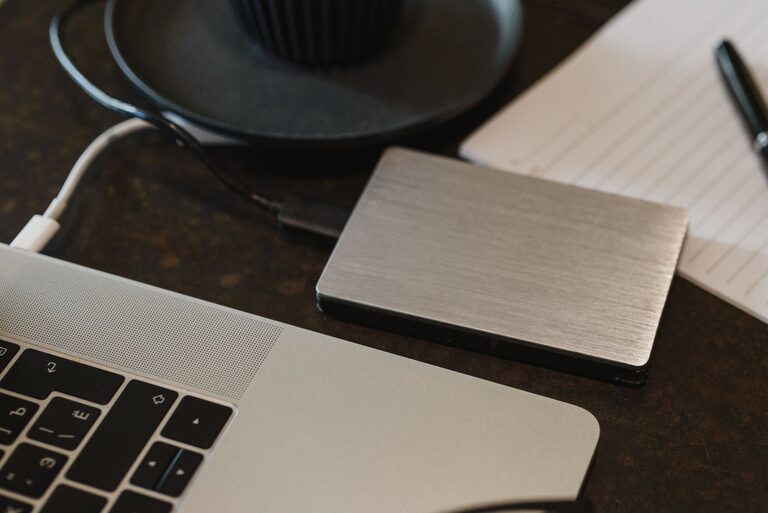
An external hard drive or solid-state drive is a simple way to create a local backup. These drives connect to a computer through a USB cable and are available in many storage sizes.
How to get started
- Choose a drive with enough space for your important files and room for future additions.
- Connect the drive to your computer.
- Create folders that match the way you organize your files.
- Copy your photos, documents, videos, and other important files to the drive.
- Safely eject the drive when the transfer is complete.
Some computers include built-in backup tools that can copy files automatically. Look for a backup or storage option in your device settings. Automatic backups are useful because they reduce the chance of forgetting to make a copy.
After backing up, disconnect the drive when it is not in use. Keeping it disconnected helps protect the backup from accidental deletion, some types of malware, and power-related problems. Store the drive in a cool, dry place away from direct sunlight and liquids.
Use cloud storage for an off-site copy
Cloud storage keeps files on remote servers that you access through the internet. It can be useful for photos and documents because it provides access from more than one device and keeps a copy away from your home.
When choosing a cloud storage service, consider:
- Available storage space
- Automatic photo and file uploads
- Support for your phone and computer
- File recovery and version history
- Privacy and security settings
- Ease of downloading your files
Many services can automatically upload new photos from a phone. This is especially helpful if you take pictures regularly. However, an upload is not always the same as a complete backup. Some services mirror changes, which means deleting a file on one device may also remove it from the cloud. Check how the service handles deleted files and older versions.
For extra protection, keep a separate copy on an external drive or use a service designed specifically for backup. Read the service’s instructions so you understand what it saves and how long deleted files remain available.
Protect your backup accounts and devices
Backups should be protected just like the original files. Use a strong, unique password for your cloud storage account and turn on multi-factor authentication if it is available.
Keep your computer, phone, and backup applications updated. Updates often include improvements that help protect devices and storage accounts.
If your external drive contains sensitive personal information, consider using the device’s encryption feature. Encryption makes the stored files harder to read if the drive is lost. Store recovery keys or passwords in a secure place, because you may not be able to access encrypted files without them.
Avoid using a shared computer or public network to manage private backups unless you understand the risks. When using a shared device, sign out of your accounts and do not save your password in the browser.
Create a regular backup schedule
A backup is most useful when it is current. Choose a schedule based on how often your files change:
- Daily: For people who take many photos or work on important files every day.
- Weekly: A good choice for regular household backups.
- Monthly: Suitable for files that change less often, as long as you remember to follow the schedule.
Automatic backups are usually the easiest option. If you back up manually, add a reminder to your calendar. You can also connect an external drive during a regular routine, such as the first weekend of each month.
Consider keeping a separate archive of major life events, completed projects, or older photos. An archive should not be changed often, which makes it useful as a long-term copy.
Test your backups
A backup may appear complete but still have missing or damaged files. Test your plan several times a year by restoring a few photos and documents.
Check that:
- Files open normally
- Folder names and dates are correct
- Photos display at full quality
- Files can be downloaded from cloud storage
- You know the passwords or recovery information needed
You do not need to restore everything for a basic test. A small sample can show whether your backup process is working. If you discover a problem, fix it before you need the backup.
Keep your system simple
The best backup plan is one you can maintain. Start with the files that matter most, add an external copy, and set up cloud storage if you want an off-site option. Use clear folders, regular reminders, and occasional restore tests.
A simple plan with several reliable copies is better than a complicated system that is difficult to keep up with. By making backups part of your regular routine, you can protect your photos and files and spend less time worrying about unexpected device problems.